Happ
The Happ client works on Windows 10 and above. Below is everything you need, from download to first connection.
Download the App
Tip
Download the Happ installer for Windows.
Download HappApp Setup
Step 1. Install with Administrator Rights
- Run the
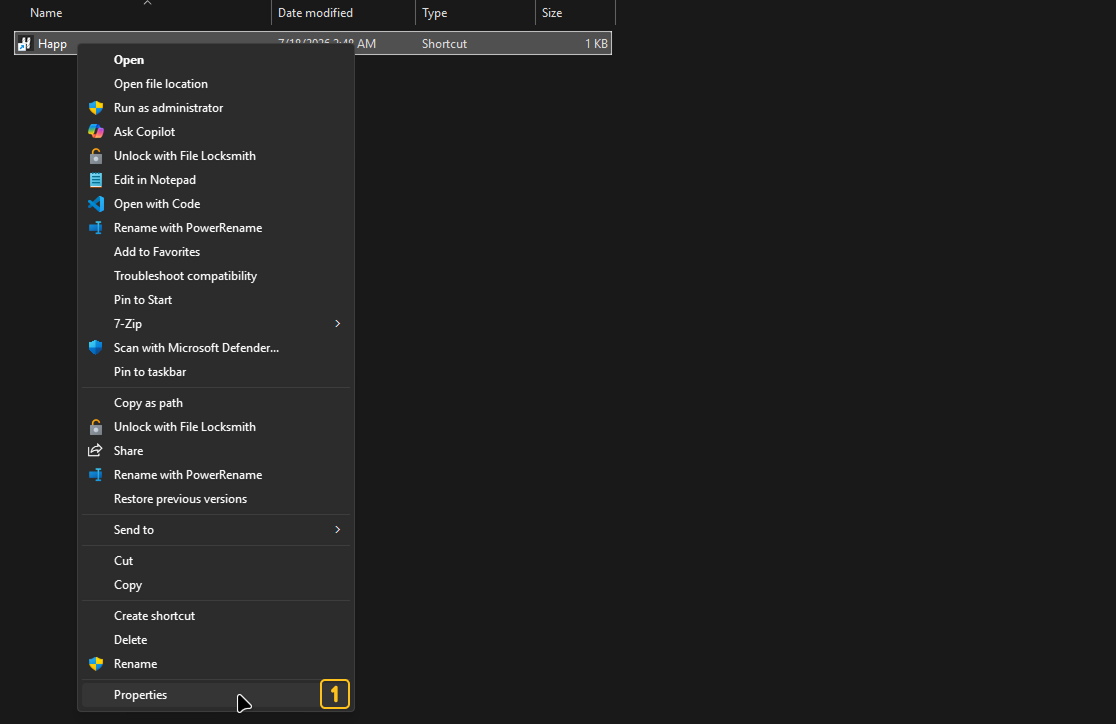
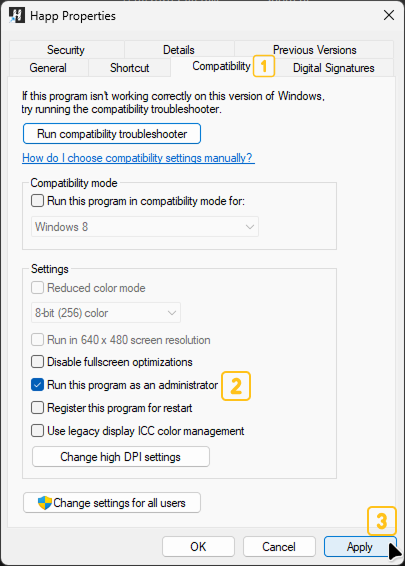
.exefile via "Run as administrator" and complete the installation - A Happ icon will appear on the desktop — right-click it, go to "Properties" → "Compatibility" and enable "Run this program as an administrator"
Step 2. Add the Key (Manual Setup)
- Go to your dashboard — the subscription link is there
- Tap "Copy Key Link"

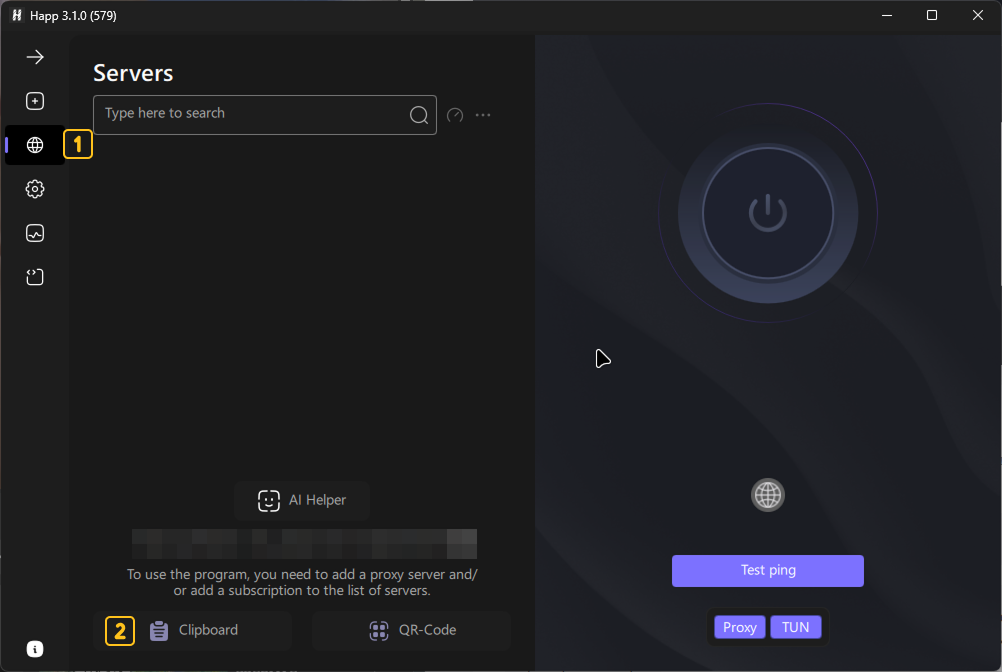
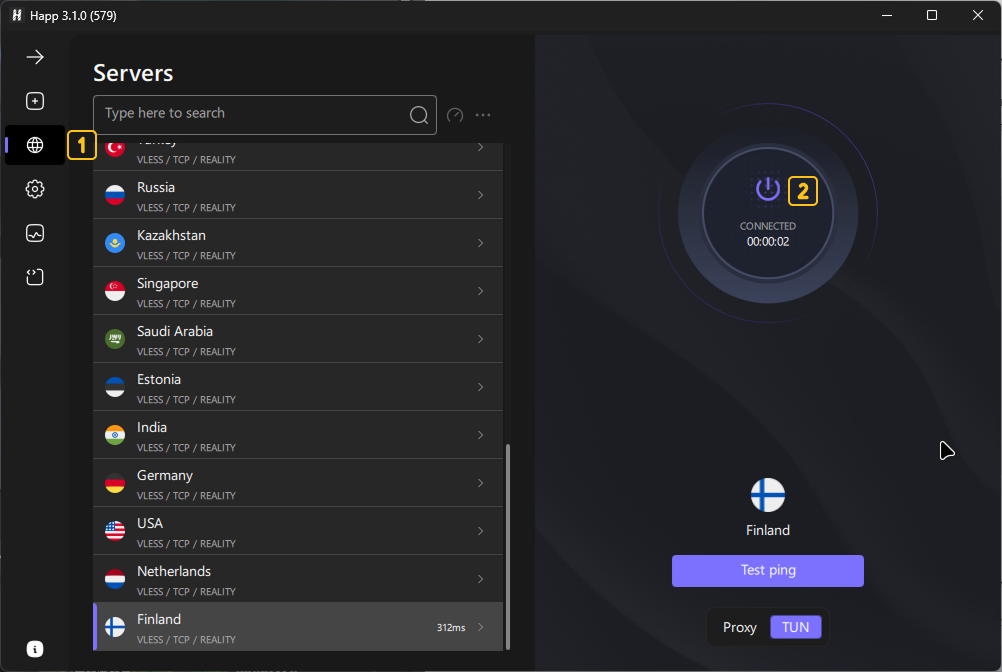
In Happ, open the "Servers" section (globe icon) and select "Clipboard" — the app will automatically detect the copied link and add the profile.
Step 3. Prepare to Launch
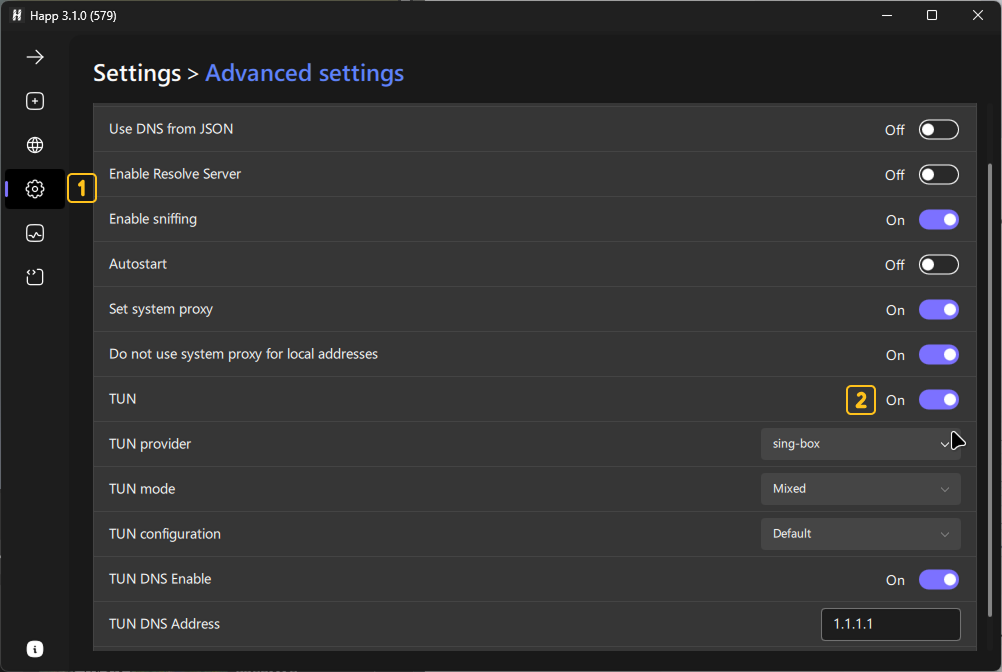
Go to the side menu, "Settings" section, and enable "TUN" mode.
Step 4. Connect
Go back to "Servers" and press the big connect button. That's it — you're all set.
When and How to Update the Subscription
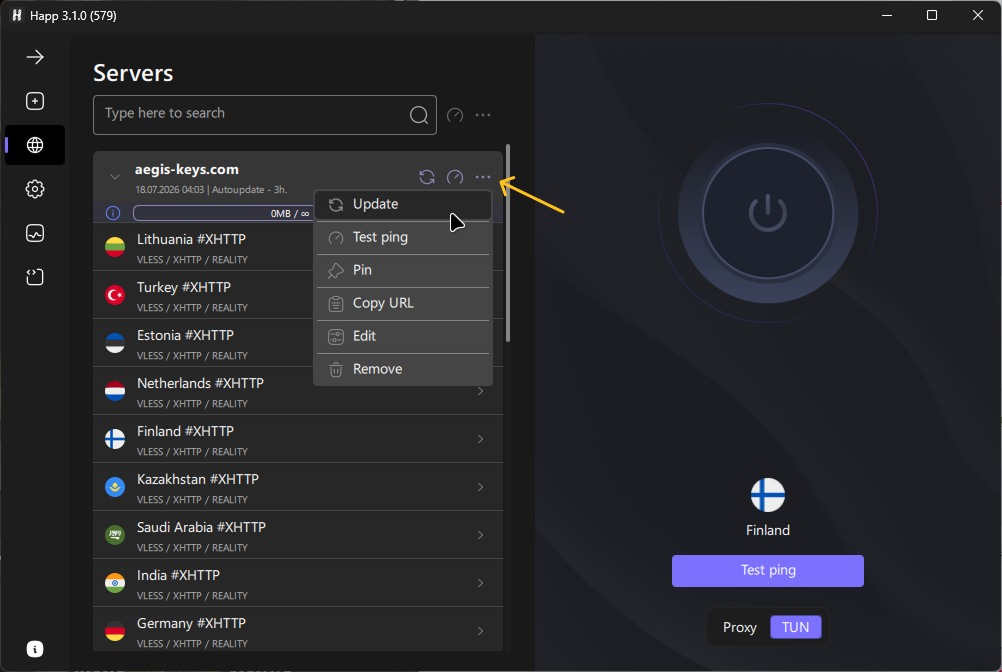
You don't need to do this now — it only matters if we change servers or plan parameters. You can update it right in the app by selecting "Update".
Conclusion
You're now ready to use Happ for safe and anonymous browsing. If you have any questions or issues, please contact support.