OpenVPN
Download the Zip Archive from Personal Account
First, you need to download and unzip the zip archive containing .ovpn files. You can obtain it from your personal account.
Accessing the Router's Control Panel
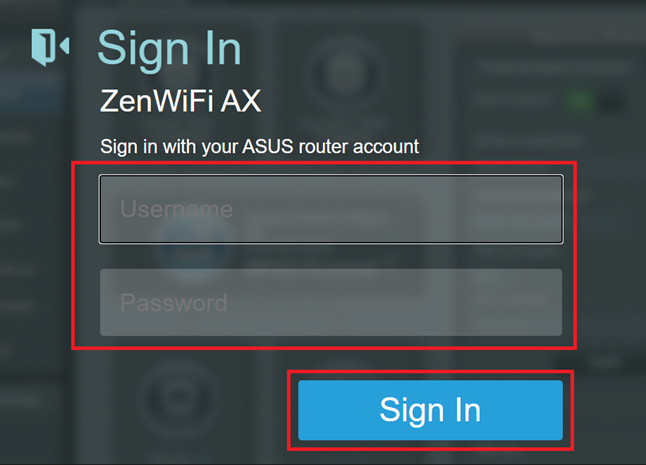
Any router configuration begins with accessing its control panel. To log into an Asus router, in most cases, navigate to http://router.asus.com/ or http://www.asusrouter.com/ and sign in.
Login and password information is typically found in the router’s manual or on the back of the device. The default is usually admin/admin, and we recommend changing the password to a more secure one later.
Configuring the VPN Client on the Router
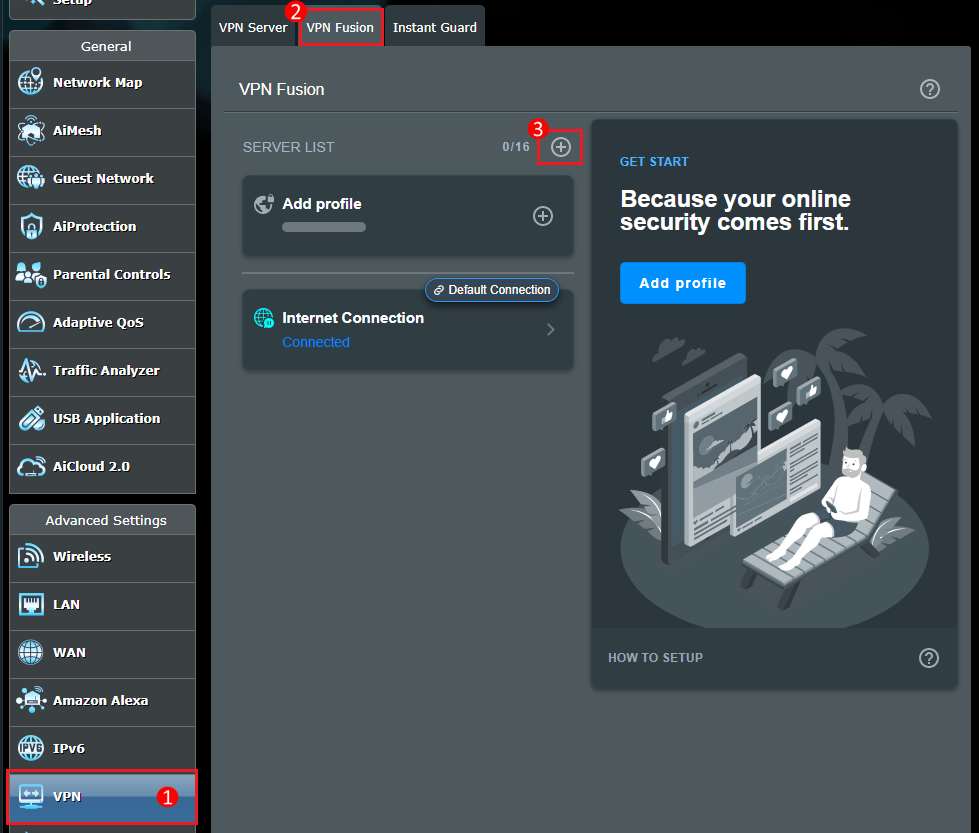
- Go to the "Advanced" section → "VPN", select the "VPN Client (VPN Fusion)" tab, and click the "Add profile" button.
-
In the opened window, configure the following settings:
- Connection name – this is the name of the connection. We recommend using the name of the country, for example, "Finland".
- VPN type – select OpenVPN.
- Username and Password – leave these fields empty.
- Configuration file – import any of the .ovpn files from the downloaded archive.
-
Save the server by clicking the "Apply and enable" button.